
If you’ve ever spent an entire afternoon messing with OBS settings instead of actually playing video games, I get it.
I’ve been there.
- I’ve changed encoders
- Adjusted bitrates
- Messed with recording settings
- And spent more time troubleshooting than I care to admit
And sometimes, after changing five different things, I couldn’t even tell which one actually helped.
There are hundreds of guides telling you to use certain settings, but not all of them are:
- Using your graphics card
- Streaming at your resolution
- Or trying to record gameplay at the same time
So instead of putting together another generic OBS settings guide, I wanted to show you exactly what I’m using in 2026.
I stream to YouTube using an AMD Radeon RX 6700 XT, and my current setup runs smoothly at 1440p and 60 FPS.
I also record my gameplay through OBS, and after experimenting with different recording configurations, I finally found a setup I’m happy with.
These aren’t settings I copied from somebody else’s video.
They’re the settings I’m actually using.
I’ll walk through each one, explain what it does, and share a few things I’d recommend considering before copying everything.
My PC Specs and Streaming Setup
Before getting into OBS, here’s the hardware I’m working with.
- Graphics Card: AMD Radeon RX 6700 XT 12GB
- Processor: AMD Ryzen 7 3700X
- RAM: 32GB
- Operating System: Windows 11 Pro
- Main Monitor: Sony Inzone M9
- Second Monitor: Acer Nitro XV272U
- Streaming Software: OBS Studio
- Stream Resolution: 2560 x 1440
- Stream Frame Rate: 60 FPS
- Video Encoder: AMD HW H.264 (AVC)
My Sony monitor has a native 4K resolution, but that doesn’t mean I need to stream everything in 4K.
I adjust individual games based on what looks good and how well they run.
For OBS, I’ve settled on 1440p at 60 FPS.
I think it’s a good balance between picture quality and performance for my setup.
And most importantly, it’s been working.
If you’re still figuring out what hardware matters for streaming, check out Best Graphics Cards for Streaming in 2026: What Really Matters?
But your graphics card is only one piece of the puzzle.
Your microphone, webcam, lighting, and the way everything works together matter too.
I’ve talked about that in Streaming Gear You Need (Skip the Overhyped Stuff!)

I’d much rather have reliable equipment that works every morning than spend money upgrading things I don’t actually need.
My Best OBS Streaming Settings for AMD GPUs
Let’s start with the most important section.
Open OBS and navigate to:
Settings → Output → Streaming
Make sure Output Mode is set to Advanced.
That gives you access to the individual encoder settings.
My Exact OBS Streaming Settings
- Output Mode: Advanced
- Audio Track: 1
- Audio Encoder: FFmpeg AAC
- Video Encoder: AMD HW H.264 (AVC)
- Rescale Output: Disabled
- Rate Control: CBR
- Bitrate: 18,000 Kbps
- Keyframe Interval: 2 Seconds
- Preset: Quality
- Profile: High
- Pre-Analysis: Disabled
- Max B-Frames: 2
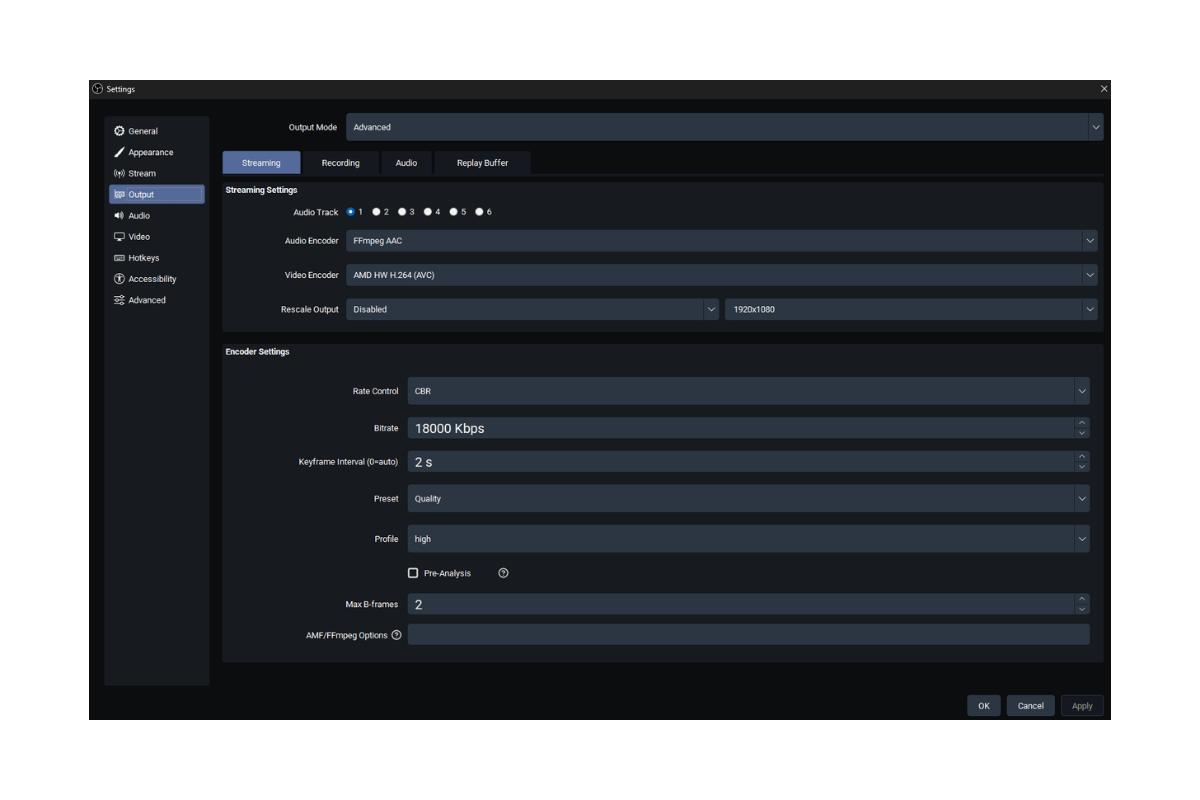
These are my actual settings as of October 2026.
My YouTube streams have been smooth and stable with this configuration.
That doesn’t mean everybody should immediately copy every number, especially the bitrate.
But if you’re using an AMD graphics card and trying to figure out where to start, this should give you a useful real-world example.
Why I Use AMD HW H.264 (AVC)
One of the biggest decisions you’ll make in OBS is which encoder to use.
I’m using AMD HW H.264 (AVC).
This uses dedicated video-encoding hardware on my AMD graphics card.
Instead of relying on my Ryzen 7 3700X to handle the entire encoding process through software, OBS can use the GPU’s hardware encoder.
That doesn’t make streaming completely free from a performance standpoint.
- Your GPU still has to render the game
- OBS still has work to do
- And you can still run into performance problems if your system is overloaded
But hardware encoding is a practical choice when you’re gaming and streaming on the same PC.
H.264 is also widely supported, which makes it a straightforward option for streaming.
Some newer AMD graphics cards offer additional encoding formats, and those can be worth exploring depending on your streaming platform.
But I’m not going to tell you that you need a newer GPU or a different codec when my current setup is doing what I need it to do.
Why My Bitrate Is 18,000 Kbps
I currently stream to YouTube at 18,000 Kbps.
That means OBS is targeting approximately 18 megabits per second of encoded video data.
For a 1440p/60 FPS stream, that’s a relatively substantial bitrate.
And in my experience, it’s been working well.
However, I want to make an important distinction.
18,000 Kbps is what I use. It isn’t automatically what you should use.
Your ideal bitrate depends on several things:
- Your streaming platform
- Your upload speed
- Your connection stability
- Your streaming resolution
- Your frame rate
- The encoder you’re using
For example, somebody streaming at 1080p/30 FPS doesn’t necessarily need the same bitrate I’m using for 1440p/60 FPS.
And if you’re trying to stream to Twitch, you shouldn’t assume my YouTube settings are appropriate for that platform.
The best approach is to check your streaming platform’s current encoder recommendations, test your connection, and monitor OBS for dropped frames.
Also, having a fast internet connection doesn’t automatically mean your connection will remain stable during an entire livestream.
Consistency matters.
Why I Use CBR
My Rate Control is set to CBR, which stands for Constant Bitrate.
CBR tells the encoder to target a consistent bitrate rather than changing it freely based on how complicated the scene is.
For livestreaming, that’s generally useful because the streaming platform receives a more predictable flow of data.
That doesn’t mean every second of your stream will use precisely the same number of bits.
But it gives the encoder a consistent target.
For my YouTube streams, CBR has been working well.
Keyframe Interval: 2 Seconds
I have my keyframe interval set to 2 seconds.
A keyframe is a complete video frame that other frames can reference.
Having regular keyframes helps streaming platforms process and distribute the video.
Two seconds is a common streaming configuration and works with YouTube’s recommended settings.
I haven’t had a reason to change it.
Preset: Quality
My encoder preset is Quality.
The preset influences how the encoder balances video quality against processing workload.
A quality-focused preset may require more resources than a faster preset.
Since my current setup is stable, I’ve left it on Quality.
If you experience encoder overload or rendering problems, trying a less demanding preset may be worth testing.
But don’t change settings just because somebody online says you need to.
If your streams are smooth, your recordings look good, and OBS isn’t reporting problems, that’s valuable information.
Profile: High
I’m using the High H.264 profile.
This is a common choice for high-quality H.264 streaming.
It’s supported by YouTube and provides access to encoding features intended for efficient video compression.
I haven’t needed to change it.
Pre-Analysis: Disabled
I have Pre-Analysis disabled.
Pre-analysis can give the encoder additional information about upcoming frames, but it can also introduce extra processing work.
For my current setup, I’ve left it off.
I’m not claiming that disabling it will magically fix everyone’s stream.
It’s simply part of the configuration that has been working for me.
Max B-frames: 2
My maximum B-frames setting is 2.
B-frames are a type of compressed video frame that can reference surrounding frames to improve compression efficiency.
You don’t need to understand every detail of video compression to use OBS.
I certainly didn’t when I started.
The important part is that B-frames can influence encoding efficiency and compatibility.
Two is a common H.264 streaming setting, and it’s what I’m currently using.
My OBS Video Settings for 1440p/60 FPS
Next, go to:
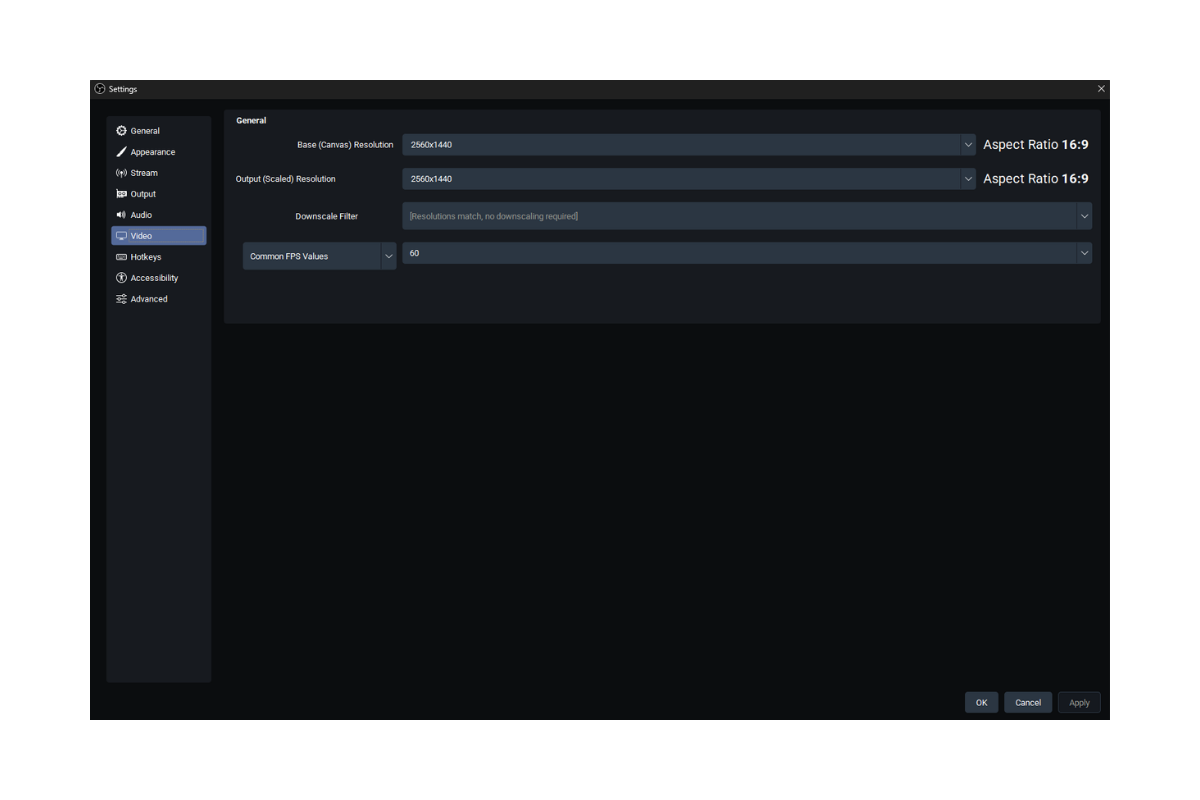
Settings → Video
This section determines the resolution and frame rate of your OBS output.
Here are my settings.
- Base (Canvas) Resolution: 2560 x 1440
- Output (Scaled) Resolution: 2560 x 1440
- Downscale Filter: Not Applicable
- Common FPS Values: 60
Why I Stream at 1440p Instead of 4K
My Sony INZONE M9 is a 4K monitor.
So why am I streaming at 1440p?
Because playing a game at a certain resolution and broadcasting that game at the same resolution are two different decisions.
Streaming at 4K can require more encoding resources, more bandwidth, and more processing from the streaming platform.
And I don’t think I need all of that for my current setup.
1440p looks good, gives viewers a detailed image, and works well with my hardware.
I also don’t need to broadcast at the same frame rate as my gaming monitor.
My monitor can refresh much faster than 60Hz, but 60 FPS is a practical target for livestreaming.
The game itself can run at a higher frame rate while OBS outputs 60 FPS.
The same idea applies to my webcam.
Just because a camera can capture 4K doesn’t automatically mean I need to broadcast everything in 4K.
Resolution is only one part of picture quality. Lighting, camera settings, and compression also make a difference.
I explored that in Do You Really Need a 4K Webcam to Stream?

It’s worth thinking about before spending more money on equipment just because it has a bigger resolution number.
Why My Canvas and Output Resolutions Match
Both my base canvas and output resolution are set to 2560 × 1440.
That means OBS doesn’t need to downscale the completed canvas to a different output resolution.
Because those values match, the downscale filter isn’t being used.
One thing worth mentioning is that individual sources can still be scaled inside the OBS canvas.
So if you’re capturing a game running at a different resolution, OBS may still need to resize that source to fit your scene.
Matching canvas and output resolutions simply avoids an additional final output-scaling step.
My OBS Recording Settings: The Change That Worked for Me
I don’t just livestream.
I also record gameplay so I can create videos and other content afterward.
And getting streaming and recording to work together hasn’t always been as straightforward as I expected.
I’ve experimented with different settings, and some configurations caused my recordings to become choppy.
Eventually, I switched to Use stream encoder.
And that has been working well for me.
My Exact OBS Recording Settings
Go to:
Settings → Output → Recording
- Type: Standard
- Recording Path: C:/Recordings
- Recording Format: Matroska Video (.mkv)
- Video Encoder: Use Stream Encoder
- Audio Encoder: FFmpeg AAC
- Audio Track: 1
- Automatic File Splitting: Disabled
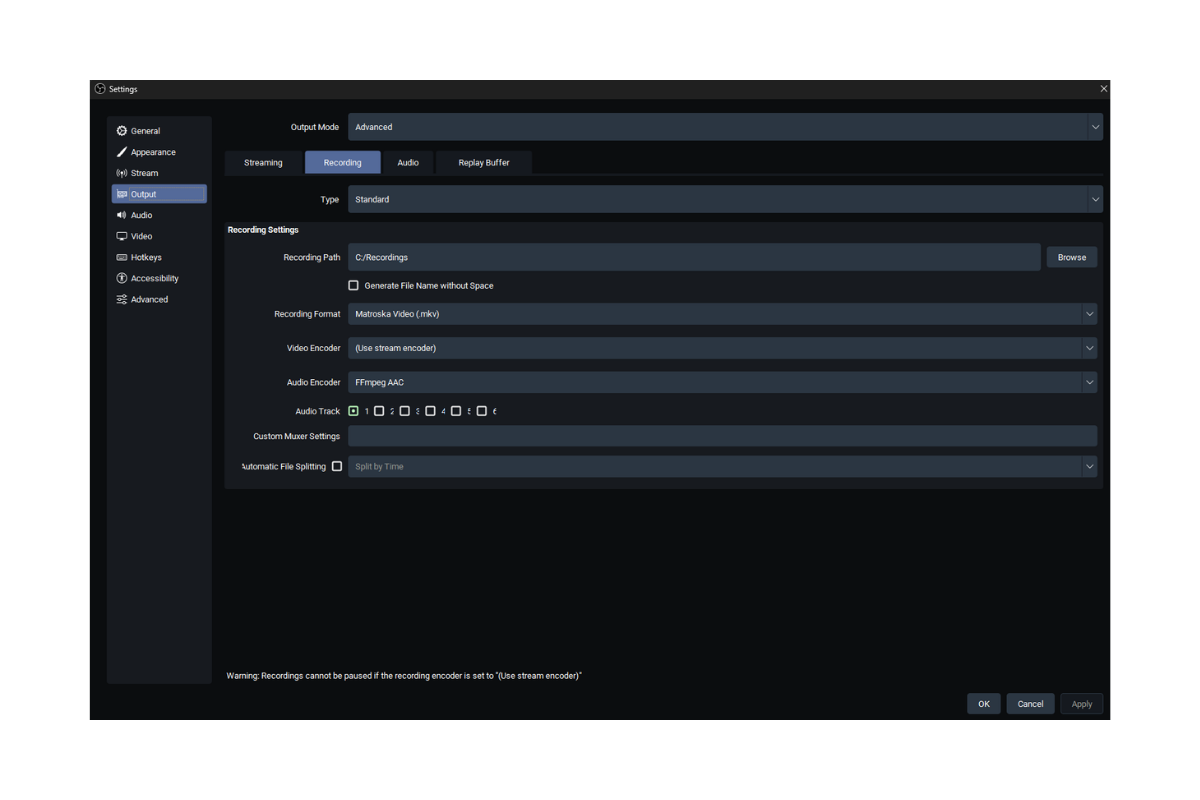
Why I Use the Stream Encoder for Recording
When you select Use stream encoder, OBS reuses the streaming encoder for your recording.
That can reduce the additional encoding workload compared with running a separate recording encoder.
And in my case, that’s exactly the kind of simplification I needed.
Before switching, I’d experimented with separate recording settings and had issues with choppy results.
Now my recordings are smooth, and I’m happy with the quality.
So I’m leaving it alone.
There is a tradeoff, though.
Using the stream encoder means your recording shares the streaming encoder’s settings.
You don’t get the same flexibility as you would with a separate recording encoder configured specifically for high-quality local files.
For example, if you want recordings with a much higher bitrate or different compression settings than your livestream, a separate encoder may be a better choice.
But if your goal is to stream and record simultaneously without adding unnecessary workload, this is absolutely an option worth testing.
Just remember that your results will depend on your hardware and the rest of your OBS configuration.
One other thing to know: OBS doesn’t allow you to pause recordings while using the stream encoder.
That hasn’t been a dealbreaker for me, but it’s worth knowing before you choose this setting.
Why I Record in MKV Instead of MP4
My recording format is Matroska Video (.mkv).
One of the biggest reasons to use MKV is protection against interrupted recordings.
If OBS crashes or your computer unexpectedly shuts down, an MKV recording is generally more resilient than a traditional MP4 recording that hasn’t been finalized.
That doesn’t guarantee every interrupted file can be recovered.
But it reduces one common risk.
And when you’ve spent hours recording gameplay, the last thing you want is to lose everything because something went wrong at the end.
If you need an MP4 file afterward, OBS has a remuxing feature.
Go to File → Remux Recordings and convert the MKV container to MP4 without re-encoding the video.
You can also enable automatic remuxing in OBS if that fits your workflow.
I currently have automatic remuxing disabled.
My OBS Advanced Settings for AMD Streaming
There’s one more section worth looking at.
Navigate to:
Settings → Advanced
These are some of the less exciting settings, but they still matter.
Video and Color Settings
- Process Priority: Normal
- Renderer: Direct3D 11
- Color Format: NV12 (8-bit, 4:2:0)
- Color Space: Rec. 709
- Color Range: Limited
- SDR White Level: 300 nits
- HDR Norminal Peak Level: 1000 nits
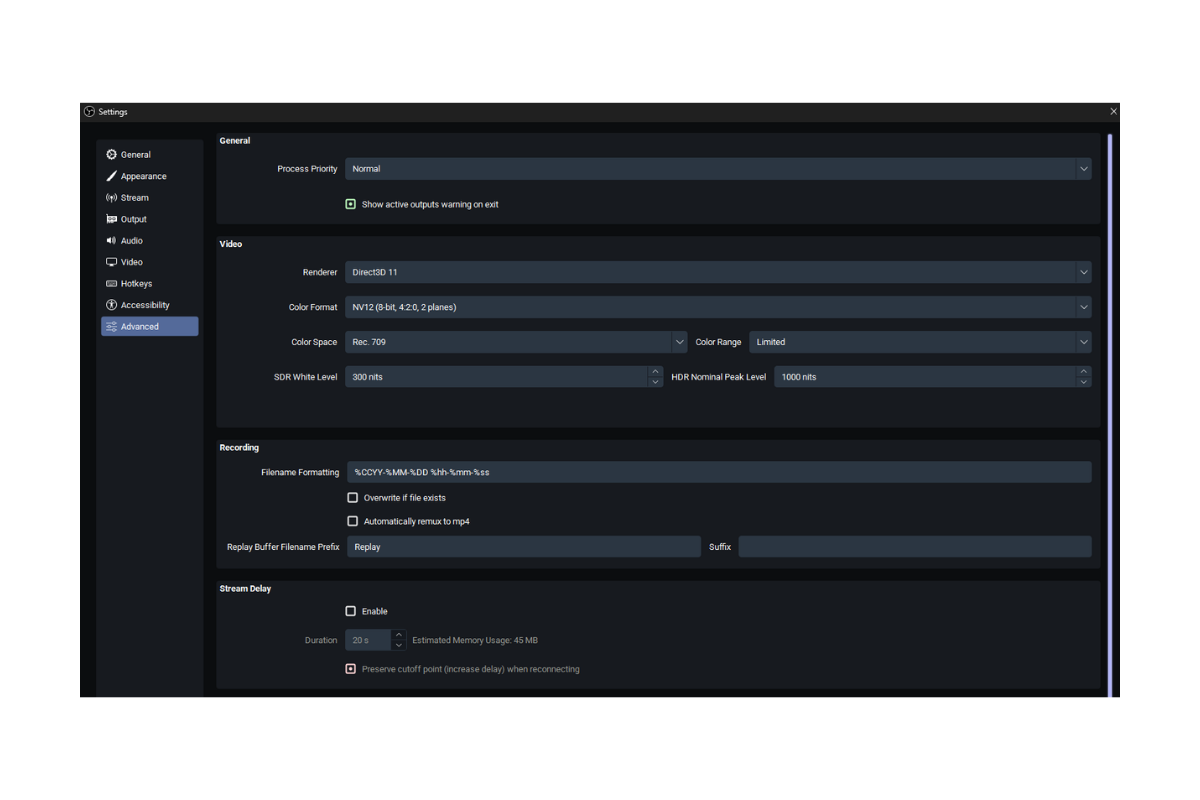
I’m using an SDR-oriented configuration with NV12, Rec. 709, and Limited color range.
These are common settings for standard dynamic range video.
The important thing is to keep your color pipeline consistent.
Changing color format, color space, or range without understanding the rest of your setup can cause washed-out colors, crushed blacks, or other unexpected results.
And just because you own an HDR-capable monitor doesn’t mean you need to stream in HDR.
My monitor supports HDR, but my OBS configuration is set up for SDR output.
Network and Reconnection Settings
My additional advanced settings include:
- Stream Delay: Disabled
- Automatically Reconnect: Enabled
- Retry Delay: 1 Second
- Maximum Retries: 14
- Dynamically Change Bitrate: Disabled
- Network Optimizations: Enabled
- TCP Pacing: Disabled
- Browser Source Hardware Acceleration: Enabled
- Hotkey Focus Behavior: Never Disable Hotkeys
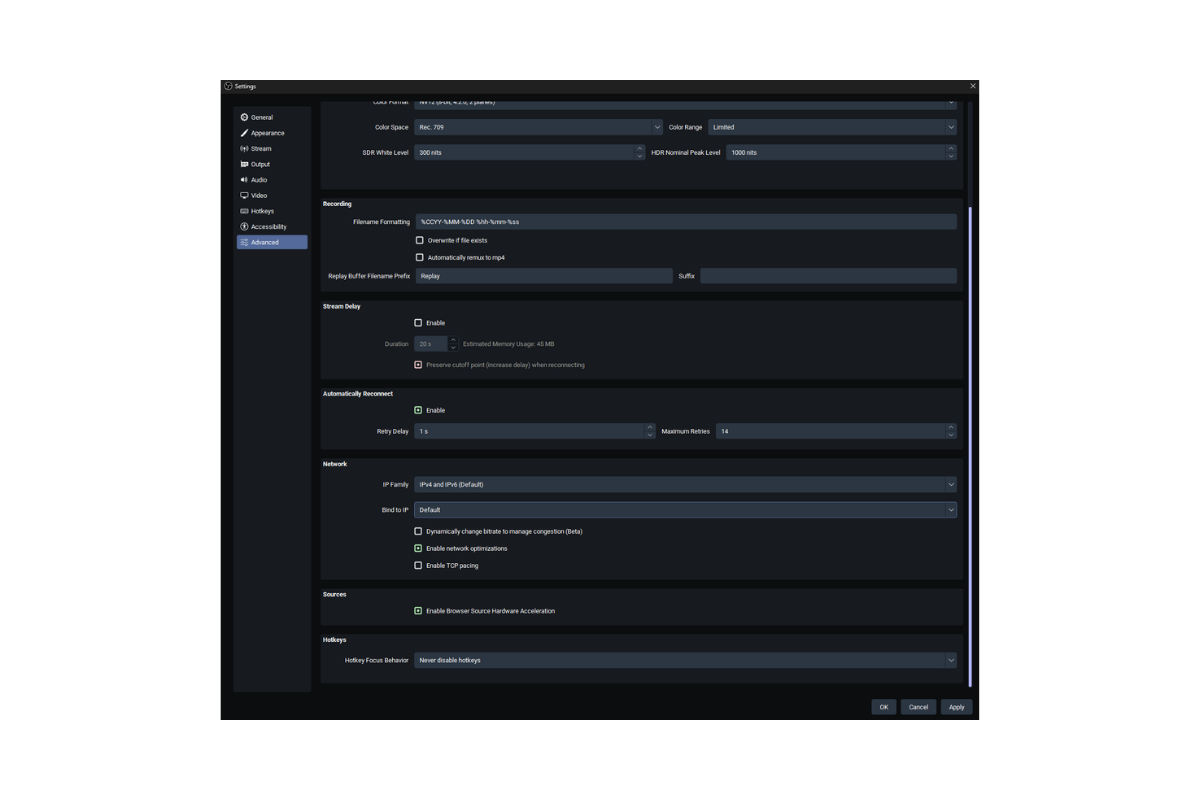
I like having automatic reconnection enabled.
If OBS temporarily loses its connection, it can attempt to reconnect instead of requiring me to restart everything manually.
That doesn’t mean viewers will never experience an interruption.
But it’s a useful safeguard.
I also have network optimizations enabled.
The dynamic bitrate feature is disabled, meaning OBS isn’t configured to automatically reduce my target bitrate in response to network congestion through that option.
Since my streams have been stable, I haven’t needed to experiment further with it.
How to Tell Whether Your OBS Settings Are Actually Working
It’s easy to get obsessed with settings.
You find a guide, change a bunch of things, and assume your stream is better.
But how do you actually know?
OBS has a built-in Stats window that can help.
Open:
View → Stats
Pay attention to these three things.
1. Frames Missed Due to Rendering Lag
This happens when OBS can’t render frames quickly enough.
It can occur when your GPU is overloaded or OBS doesn’t have enough resources available to render the scene on time.
If you’re gaming and streaming on the same computer, this is especially important.
Sometimes the solution isn’t changing your bitrate.
It might be limiting your in-game frame rate, reducing graphics settings, or leaving more GPU resources available for OBS.
2. Skipped Frames Due to Encoding Lag
This happens when the encoder can’t keep up with the frames OBS is sending it.
If you’re seeing encoding lag, you may need to reduce encoder workload, adjust your preset, or reconsider how you’re handling simultaneous streaming and recording.
3. Dropped Frames Due to Network Problems
These are different from rendering or encoding problems.
Network-related dropped frames happen when OBS can’t reliably send the stream to the server.
Possible causes include unstable upload bandwidth, network congestion, or connection problems between you and the streaming service.
This is why I wouldn’t immediately lower game graphics settings when OBS reports network-related dropped frames.
You need to identify which problem you’re actually experiencing.
My recommendation: Make one change at a time, run a test stream, and check OBS Stats before changing anything else.
Otherwise, you can spend hours adjusting settings without knowing what actually improved your stream.
Should You Copy My OBS Settings Exactly?
Not necessarily.
And I think this is where a lot of OBS tutorials go wrong.
They present one configuration as if it’s perfect for every computer.
But somebody streaming at 1080p with an older AMD graphics card might need a different setup than somebody streaming at 1440p with a newer GPU.
- Your internet connection matters.
- Your game matters.
- Your recording requirements matter.
- Even the number of browser sources, filters, and overlays in your OBS scenes can affect performance.
I’d use my configuration as a reference point, not a guarantee.
Here’s how I’d approach it:
- Decide which platform you’re streaming to.
- Choose a resolution and frame rate your hardware can handle.
- Select a supported hardware encoder.
- Start with your platform’s recommended bitrate and keyframe settings.
- Run a private or unlisted test stream when supported.
- Monitor OBS Stats for rendering, encoding, and network problems.
- Change one setting at a time until you’re happy with the results.
For YouTube specifically, check the latest official encoder recommendations before choosing your bitrate.
And if you’re using a different AMD GPU, don’t assume it has exactly the same encoder capabilities as my RX 6700 XT.
My Biggest Lesson From Troubleshooting OBS
There was a point where I kept experimenting with settings because I assumed there had to be something better.
- A different encoder.
- A different recording configuration.
- A different resolution.
- Another setting somebody recommended online.
And sometimes those changes made things worse.
The recording encoder is a perfect example.
I tried different configurations, had problems with choppy recordings, and eventually ended up using the stream encoder.
Now my streams are smooth.
My recordings are smooth.
And I’m happy with how everything looks.
I’ve had a similar experience with audio.
Getting my microphone to sound the way I wanted took some experimenting with filters, levels, and different OBS settings.
I shared that process in Best OBS Filters for FIFINE AM8 PRO-T: My Settings
It’s another example of how small adjustments to equipment you already own can sometimes make a bigger difference than buying something new.
Could I probably squeeze a little more quality out of the setup if I spent another weekend experimenting?
Maybe.
But at some point, I’d rather spend that time actually playing games and making content.
That’s the whole reason I built this setup in the first place.
I’ve talked about that approach in My Gaming Setup Isn’t Impressive (And That’s Why It Works)
You don’t need every piece of expensive equipment or the most complicated configuration to make content.
You need something reliable that lets you focus on what you’re creating.
Final Verdict: The OBS Settings I’m Keeping in 2026
After all the experimenting, troubleshooting, and changing settings, here’s where I’ve landed.
I’m streaming to YouTube at 1440p/60 FPS using my AMD RX 6700 XT.
I’m using AMD’s H.264 hardware encoder, CBR rate control, an 18,000 Kbps target bitrate, a two-second keyframe interval, and the Quality preset.
My recordings use the same stream encoder and save as MKV files.
And right now?
Everything is running smoothly.
I’m happy with my stream quality, I’m happy with my recordings, and I don’t feel the need to keep changing things just because another OBS guide recommends something different.
If you’re using an AMD GPU and struggling to get OBS working the way you want, hopefully seeing a real configuration gives you a useful place to start.
Just remember that these are my settings, on my hardware, for my YouTube streams.
Test them against your own setup before deciding what’s best for you.
And once you finally get everything working?
Go play something.
That’s a lot more fun than spending another three hours staring at the OBS settings menu.
If you want to see how my setup looks in action, you can catch my gameplay streams on YouTube @ChannlerG